



This app allows you to:
View your home clinic’s information
Check your current benefit balance
Scan items in the store to see if they are WIC Approved
View the WIC Approved Food List
Find a WIC clinic near you
Find a WIC vendor near you
Using the EzWIC App
To add your card
To add your eWIC card To add your eWIC card and check your benefit balance, select “Manage Cards” from the Menu, located in the upper left corner from the “Manage Cards” screen, then choose “+Add Card”.
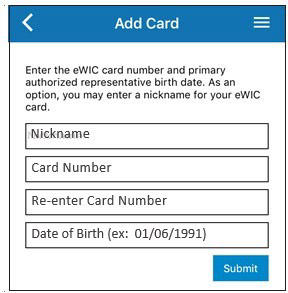
Enter a name for your card, the card number, and primary cardholder’s date of birth. Click ‘Submit’ when done.
Edit a Card
Choose the edit icon next to the card you want to edit
Delete a Card
Choose the delete icon next to the card you want to delete

Search Food List
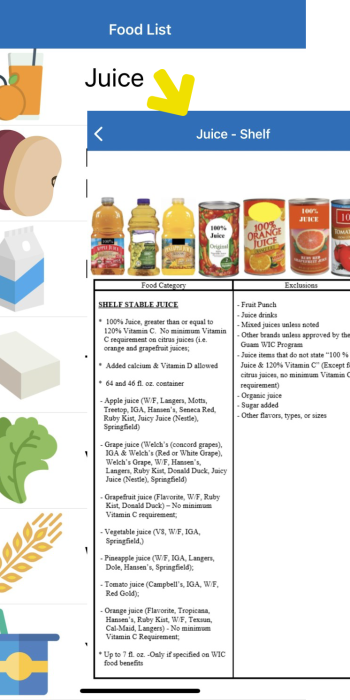
To search for WIC Approved Food List, choose “Food List” and you will see a list of food options. In this example , we chose Shelf Stable Juice. The app shows information about WIC approved juices.
EzWIC Food Search
When choosing “WIC Food Search”, the app will use your phone’s camera to scan a barcode to see if the food is WIC approved. You can also enter a barcode number by choosing “Enter Manually.”
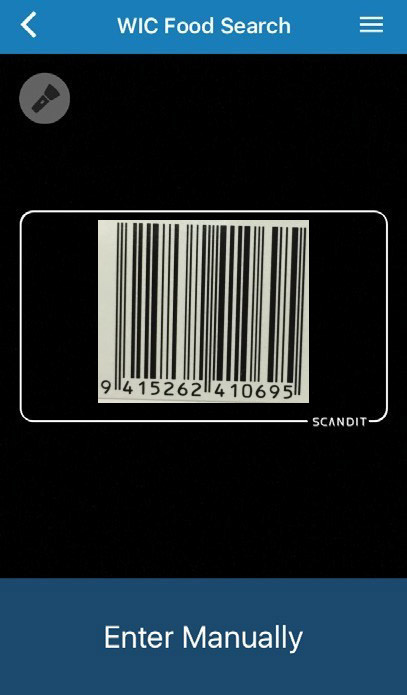
 For fresh fruits and vegetables, you will need to type in the PLU number found on the sticker or tag.
“Item Approved” means the item is WIC approved. Check your benefit balance to make sure you have benefits to get the item this month.
``Not Approved`` means the item is not approved and cannot be purchased with your WIC benefits.
“Item Approved” in yellow means that the item might be approved depending on the store and your WIC benefits. Be sure to check your benefit summary for approved items.
Check Your eWIC Card Balance
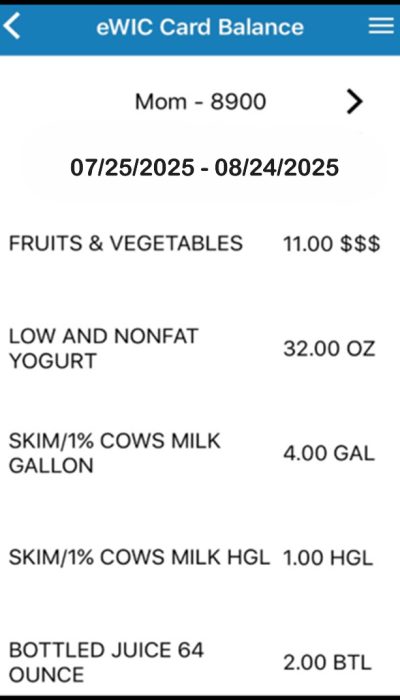
 On the Home screen, select the “eWIC Card Balance” icon. The app will show your benefit start date and end date after you have added your card. It will also show food items and amounts left.
The app will show your benefit start date and end date after you have added your card. It will also show food items and amounts left.
Other Features
My Clinic
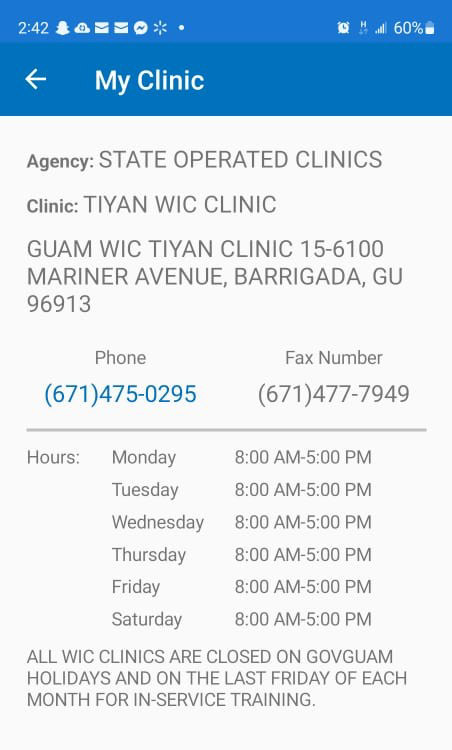
The My Clinic button displays important information regarding your home clinic.
Clinic Search
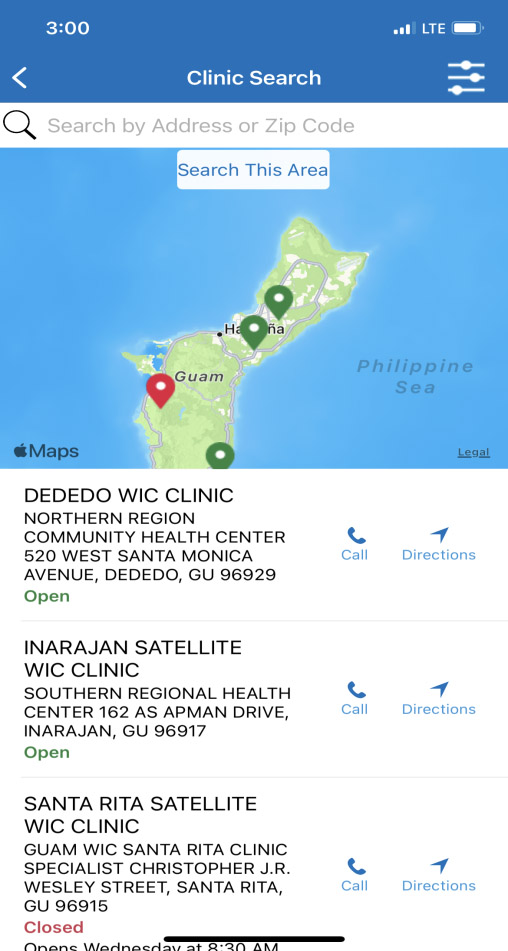
The Clinic Search button allows you to search a WIC clinic location.
Store Locator
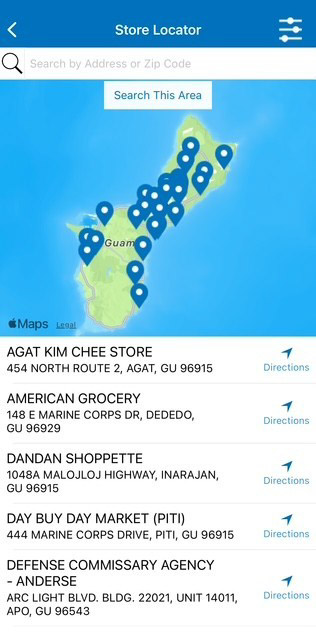
The Store Locator button allows you to search a WIC authorized store.